







Does the lamp cast a shadow across the middle of an open notebook? Can you pull the arm towards you without holding the base? A product video that shows how long and how far the arm moves tells shoppers more than the word ‘adjustable’.
Say your ecommerce team is launching desk lamps in moss green and chalk. Open the product listing alongside the launch footage. Play each clip through and note the first question you would still ask before adding the lamp to your basket.

Sort the footage by SKU and placement
Group your files by stock-keeping unit (SKU), then put the clips in listing order. Give each shot its own row. If your phone contains several takes, put the start and end times next to the source filename so a colleague can find the full take later.
| SKU | Source file | Listing slot and shot | What the shopper should see |
|---|---|---|---|
| DL-MOSS | IMG_2141.MOV | Gallery opener, wide shot | The moss finish and the size of the base beside an A4 pad. |
| DL-MOSS | IMG_2142.MOV | Adjustment panel, arm demo | How far the shade travels while the base stays put. |
| DL-MOSS | IMG_2143.MOV | Controls panel, switch close-up | Which brightness number the pointer settles on. |
Use customer enquiries to decide what goes in the final column. If shoppers ask whether it takes two hands to adjust the lamp, look at the demonstrator’s spare hand. A thumb holding the base down changes the answer. Copy the same questions to the chalk SKU, and leave its source cells blank until you’ve checked the clips for that variant.
Use the original phone file. Look at the coiled cable beside the base in both versions. If the turns are visible in the original but run together in the compressed copy from the team chat, keep the original as your master.
Decide what to keep, enhance or reshoot
Start with the wide shot. If the A4 pad lies flat next to the base and its edges are visible, it gives shoppers a sense of scale. Check whether the finish looks moss green as the camera passes the shade. If the colour and scale come through, mark the clip ‘keep’. Sharpening the desk grain adds little.
The arm demonstration is less clear. You can make out the outline of the hinge as it opens, and the number 2 beside the brightness switch is just visible. Mark that clip ‘enhance’. In the close-up from the other side, glare leaves a white stripe across the scale. Check whether it still hides the marking after the hand moves away.
Test the soft clip in Vmake Labs Video Enhancer
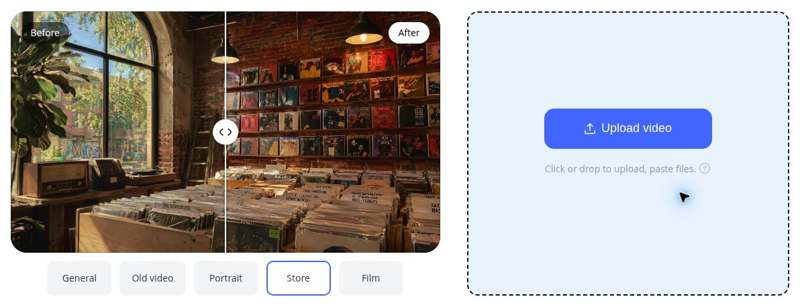
Trim a short clip of the arm demonstration, starting just before the hand enters the frame and ending when the shade settles. Upload it to the Vmake Labs Video Enhancer. Open the original beside the enhanced preview. Set both players to the same size so the lamp fills the same area in each.
Read the marking on the same frame
Pause both versions on the same frame, just before the fingertips touch the arm. Compare the curve and short base of the number 2. If a new stroke appears in the enhanced preview, check the surrounding frames in the original. Reject any version that changes the number.
Follow the hinge in motion
Play both clips at normal speed. Watch the edge of the moving arm as it passes the upright. Does a second edge trail the metal? Replay that section in the original. Flicker that appears only in the enhanced preview can make a sound hinge look loose. Compare the clip you plan to use with the lamp itself.
Check the real lamp and the mobile listing
Put the moss green lamp on a desk in neutral light and compare three details with the proposed edit.
- Tilt the shade and compare the highlight on its satin surface. A narrow, mirror-like streak in the video can make the paint look glossy.
- Pause the clip and hold the base next to the screen. Check whether the green in the footage has a blue tint you can’t see on the lamp itself.
- Read the numbers on screen from left to right. Check their shapes and order against the scale printed on the lamp.
Once the footage matches the sample, open the draft listing on a phone and tap the moss green swatch. Play the clip at the gallery’s default size, then tap to bring up the playback controls. If the crop or controls hide the switch, reframe the clip using the space in the original shot and test again. Tap the chalk swatch as well to make sure the moss green clip hasn’t been assigned to both variants.
For each approved shot, record the chosen version, its listing position and who signed it off. Keep those details in the original row so the person publishing the range can find the right clip by SKU.
That leaves the switch close-up. Glare hides the brightness marking as the demonstrator touches and releases the switch. The number 2 is readable in the arm shot, but no one operates the switch there. In the row for IMG_2143.MOV, write ‘Reshoot switch only. Glare over level 2. Move the light to the side and hold the shot as the pointer settles on the number.’

Terry Clark is the Publisher and Content Director of 365 Retail, with more than a decade of experience covering retail design, technology innovations, store openings and the wider retail industry. He also works closely with leading retailers, suppliers, agencies, events and industry awards across the UK.