










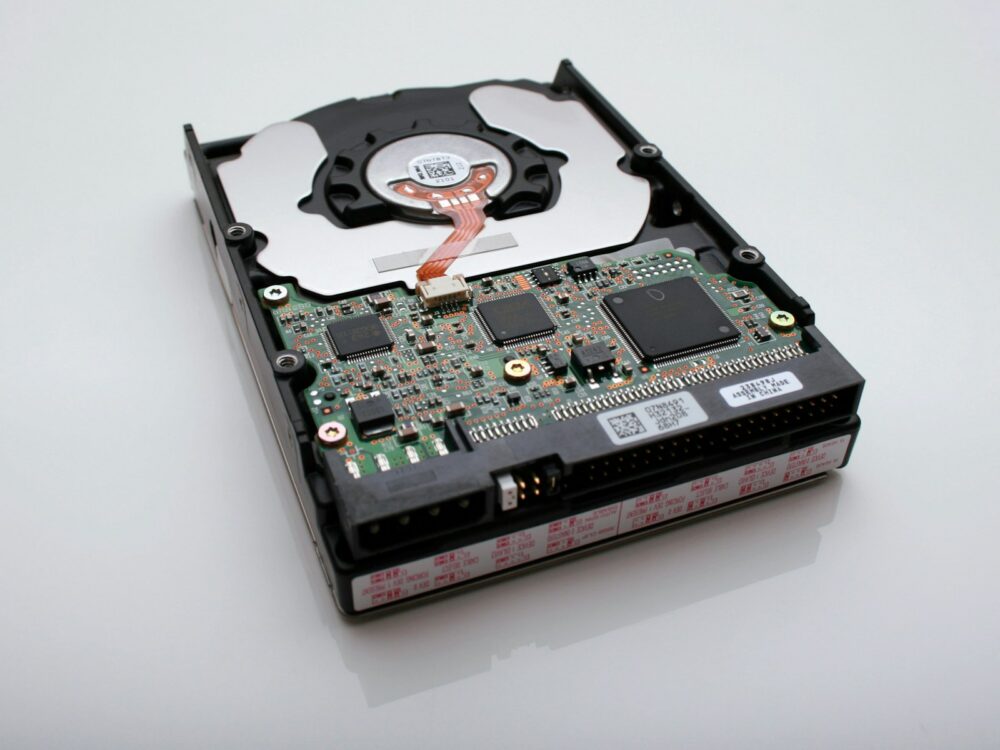
I plug in my hard drive and Windows says “You need to format the disk before you can use it.” Or the drive shows up as RAW. Or the folders I saved last week have simply vanished. My stomach drops, because years of photos, work files or client data might be gone.
Take a breath: in most cases, they are not. When a drive is corrupted or files are deleted, the data itself usually stays on the disk and your files come back, often with their original names and folders.

The catch is time. Every file you save, every “Scan and fix” you accept and every format you click can overwrite what you are trying to rescue. Follow the steps below in order, and you give yourself the best possible chance of getting everything back. Before you try anything, here’s what not to do
Before You Start: 6 Things You Must Not Do
When you delete a file, the drive does not wipe it. It only marks that space as “free”. The file stays there until new data is written on top of it. That is why your first moves matter more than which software you pick.
- Don’t save anything to the drive. No new files, no downloads, no copying. Every write can overwrite the files you want back.
- Don’t install recovery software on the affected drive. Install it on your main system drive or run it from a USB stick.
- Don’t click “Format” when Windows asks. A quick format resets the file system and makes recovery harder. Click Cancel.
- Don’t run CHKDSK first. CHKDSK “repairs” the file system by changing it. On a corrupted drive it can rename, truncate or delete file entries. Recover first, repair later.
- Don’t keep restarting a drive that clicks or beeps. Each power-on can scratch the platters further.
- Don’t open the drive, freeze it or tap it. These old internet tricks usually cause permanent damage.
One special case: SSDs. Most internal SSDs use a feature called TRIM that clears deleted blocks within minutes. Recovering deleted files from an SSD is much less likely than from a spinning hard drive, so act even faster, or go straight to a professional.
3 Ways to Recover Deleted Files from Corrupted Hard Drive
Work through these in order. Start with the easy, zero-risk options, and only move to deeper scans if those fail. Whatever tool you use, always save recovered files to a different drive.
Method 1: Check the Recycle Bin, Backups and Cloud Sync
It sounds obvious, but it is the fastest fix.
- Recycle Bin (Windows) or Trash (Mac): Files deleted from internal drives usually land here. Right-click and choose Restore. Note: files deleted from external USB drives often skip the Recycle Bin.
- File History (Windows): Right-click the folder where the files were, choose Properties > Previous Versions, and restore an older copy.
- Time Machine (Mac): Open the folder in Finder, enter Time Machine, scroll back to a date before the deletion and click Restore.
- Cloud services: OneDrive, Google Drive and Dropbox keep deleted files in their own bin for a period (often around 30 days), and many keep earlier versions too.
Method 2: Windows File Recovery (Free, Command Line)
Microsoft’s free tool is available from the Microsoft Store for Windows 10 (version 2004 and later) and Windows 11.
- Install Windows File Recovery from the Microsoft Store.
- Open it (it runs in a command window as administrator).
- Type a command in this format: winfr E: D:\Recovered /extensive. Here E: is the corrupted drive and D: is a different drive where files will be saved.
- Add filters to speed it up, for example /n *.docx for Word files or /n \Users\YourName\Pictures\ for one folder.
Note: Windows File Recovery needs the drive to have a letter (like E:). If the corrupted drive has none, press Windows + X, open Disk Management, right-click the partition and choose Change Drive Letter and Paths. If the partition shows as Unallocated, skip to Method 3.
Method 3: Use Data Recovery Software
There are dozens of Windows data recovery options available: Stellar Data Recovery for Windows, Disk Drill, Recuva, EaseUS, PhotoRec and many more. Most of them handle simple cases well, like a file you deleted yesterday from a healthy drive.
A corrupted or RAW drive is a much tougher job, and that is where the differences between tools really show. On my own corrupted drive, Stellar Data Recovery for Windows gave the best result and it is now the first tool I recommend.
Why Stellar Data Recovery for Windows Worked
For a corrupted or RAW hard drive on Windows, Stellar Data Recovery for Windows stood out from the other tools I tried. It combined deep recovery power with an interface I could follow without a manual, and I could test it for free before paying anything.
- Built for corrupted and RAW drives. Its Deep Scan reads the drive sector by sector and searches by file signature, so it can find files even when Windows cannot open the drive at all. It also handles deleted files, formatted drives and lost partitions.
- Genuinely free to try. As of version 14.0 (released October 2026), every edition includes 1 GB of free recovery, with no time limit. You can scan, preview and save your most urgent documents before deciding to buy.
- Easy for beginners. Version 14.0 brought a redesigned interface, plus new filters that sort results by file size and modified date (today, last 7 days, a custom range). On a large drive with thousands of results, this saves a lot of time.
- It supports NTFS, exFAT, FAT16 and FAT32 drives, recovers from BitLocker-encrypted drives, and can create bootable recovery media for a PC that will not start. Advanced editions add RAID recovery.
- Repairs damaged photos and videos. After corruption, recovered media files sometimes open distorted or not at all. Stellar includes photo and video repair, so you don’t need a second tool.
- A vendor you can fall back on. Stellar has worked in data recovery since 1993, holds ISO 9001 and ISO 27001 certifications, and runs in-lab recovery services if a drive turns out to be physically damaged.
Trade-offs to know: the free edition stops at 1 GB, so recovering a whole drive needs a paid plan. Deep Scans on large drives take hours, as with any serious tool. Mac users need Stellar Data Recovery for Mac instead.
How to recover files with Stellar Data Recovery for Windows:
- Download Stellar Data Recovery from the official site and install it on your C: drive, never on the corrupted drive.
- Open the program and choose what to recover (all data, or just documents, photos, videos and so on).
- Select the corrupted or RAW drive from the list.
- Turn on Deep Scan and click Scan. Let it finish without unplugging the drive.
- Preview your files, use the size and date filters to find what you need, then click Recover and save to a different drive.
How to Prevent Hard Drive Corruption and Data Loss
Recovery is stressful and never 100% guaranteed. These habits keep you from needing it:
- Follow the 3-2-1 backup rule: keep 3 copies of important data, on 2 different types of storage, with 1 copy offsite or in the cloud. A backup on the same drive is not a backup.
- Always eject before unplugging. Use “Safely Remove Hardware” on Windows or Eject on Mac. Pulling the cable mid-write is a top cause of RAW drives.
- Use a surge protector or UPS for desktop computers and powered external drives.
- Check drive health every few months with CrystalDiskInfo or DriveDx, and replace any drive that shows warnings.
- Keep antivirus active. Some malware and ransomware damage file systems or hide files.
- Replace old drives. Spinning hard drives wear out. If yours is several years old and holds important data, plan a replacement before it fails.
Conclusion
A corrupted hard drive feels like the end, but your files are usually still there. Stop using the drive, check whether the damage is logical or physical, and recover before you repair. For most RAW or corrupted drives, a deep scan with good recovery software, saved to a separate drive, brings the files back. If the drive clicks or is not detected, turn it off and let a professional lab handle it.
Once your files are safe, set up a 3-2-1 backup so a dead drive is only an inconvenience next time. Have a question about your own drive? Leave it in the comments below and we’ll help you figure out the next step.

Terry Clark is the Publisher and Content Director of 365 Retail, with more than a decade of experience covering retail design, technology innovations, store openings and the wider retail industry. He also works closely with leading retailers, suppliers, agencies, events and industry awards across the UK.